Print Customer Pallet Serials
Print an order's pallet tags with your customer's own pallet serials (SSCCs), typed, pasted or read from their label PDF.
- 4 steps
- Also built into myPTI
Step 1 / 4
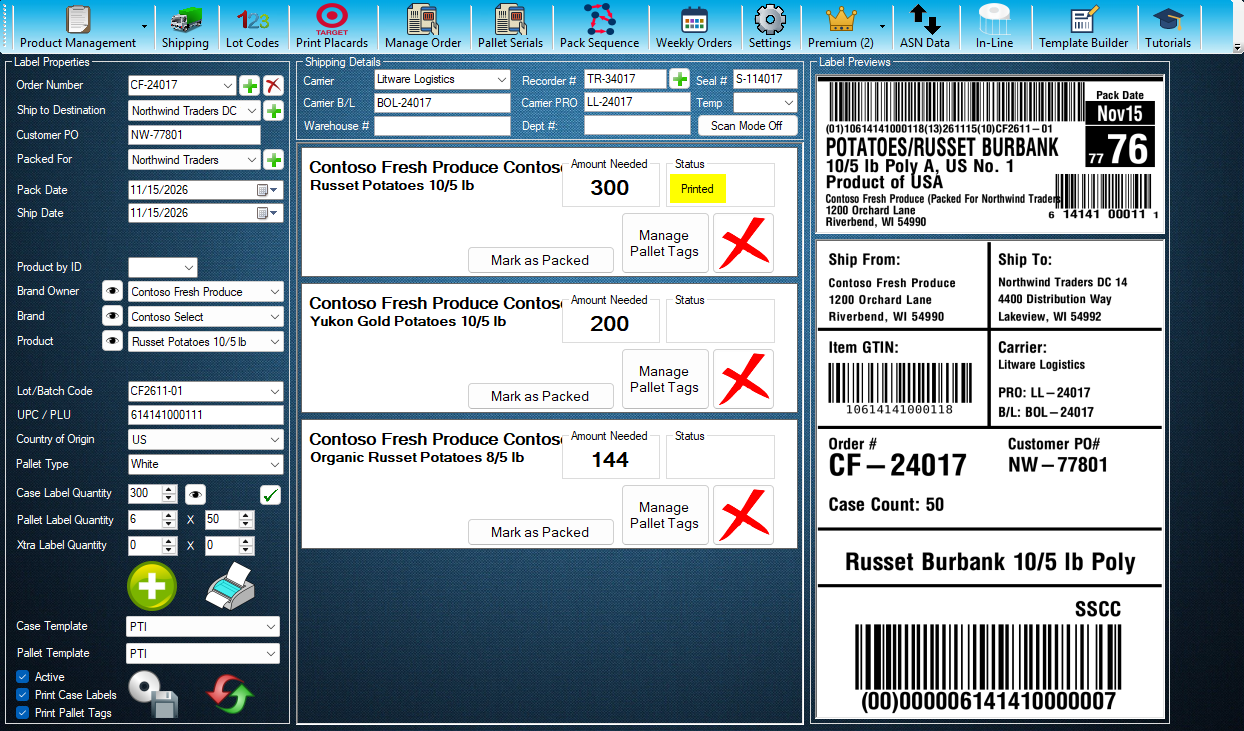
Pick the Order
Customer pallet serials belong to one order. Type or pick its order number first.
Step 1 of 4: Pick the Order
All 4 steps
Every step, as text
The same steps as the interactive tutorial above. Select a step to open it there.
- 01Pick the OrderCustomer pallet serials belong to one order. Type or pick its order number first.
- 02Pallet SerialsPallet Serials, on the toolbar just after Manage Order, chooses myPTI serials or the customer's own pallet serials (SSCCs) for the order. It is a Premium feature.
- 03Add the SerialsChoose Customer Serials, then type the serials one per line, paste a whole list, or press Read Label PDF to read them from the customer's label PDF. Press Save.
- 04Print as UsualPrint the pallet tags as usual. Each tag prints the next customer serial, in list order, and the Pallet Serials button shows how many are still ready.
Keep going
Up next
Premium Features
Use the New Reports Page
Pick a report, narrow it with the filters, check the totals and the orders, then preview, print, save a PDF or open it in Excel.
8 stepsStartPremium Features
Run Case Labels on In-Line Stations
Pick a station, check its product, lot and label, then start a run that prints a case label each time the line signals.
10 stepsStartPremium Features
See the Week's Orders
See a week of orders by ship date in their status colours, move between weeks, and choose what to do next with any order, starting with Order Details.
13 stepsStart
Ready to print your first compliant label?
Email us for a free trial account. We'll set you up, and the tutorials take it from there.