Tour the main screen
Where to pick an order, a product and a lot code, check the label previews and print, and where the rest of myPTI starts.
- 17 steps
- Also built into myPTI
Step 1 / 17
The toolbar
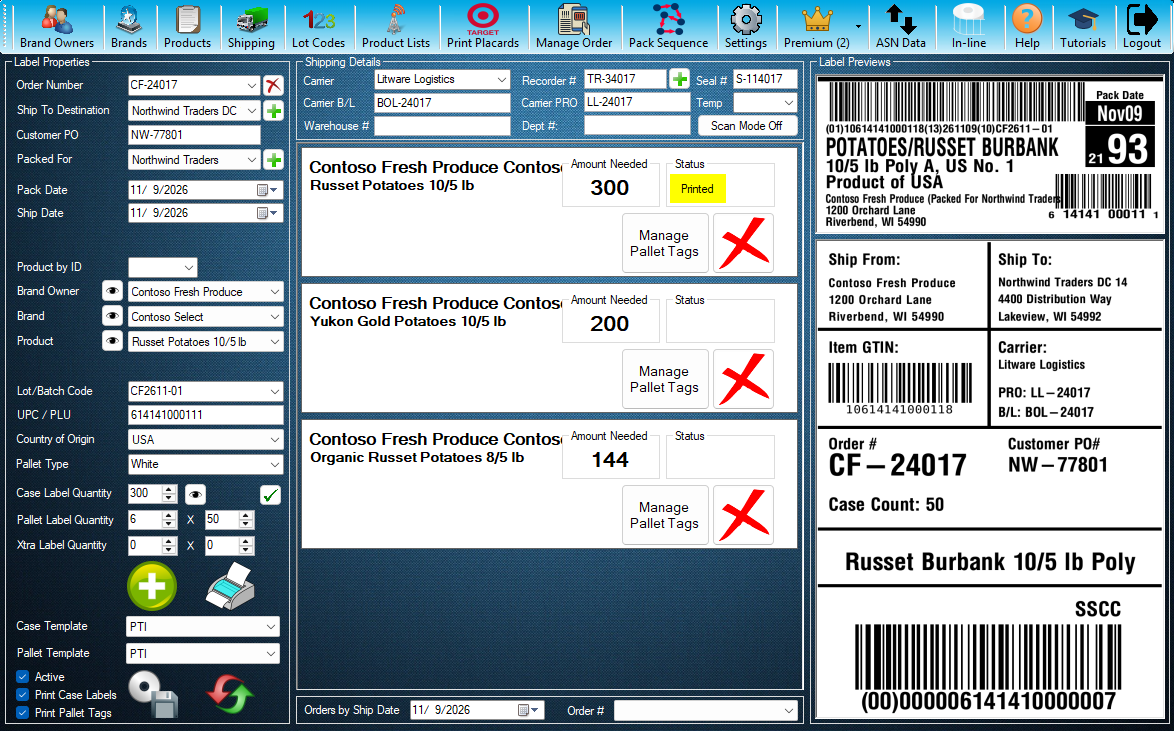
Everything in myPTI starts from this toolbar: brand owners, brands, products, shipping, lot codes, settings and more. Press Next to go on, or Esc to stop at any time.
Step 1 of 17: The toolbar
All 17 steps
Every step, as text
The same steps as the interactive tutorial above. Select a step to open it there.
- 01The toolbarEverything in myPTI starts from this toolbar: brand owners, brands, products, shipping, lot codes, settings and more. Press Next to go on, or Esc to stop at any time.
- 02Order numberPick the order you are packing, or type a new order number. Every label you print is saved to this order.
- 03Pack dateCheck the date before you print. It prints on your case labels and pallet tags.
- 04Brand ownerChoose who the product is packed for. The brands and products below follow this choice.
- 05Eye buttonsThe eye buttons beside Brand Owner, Brand and Product choose which names your drop-downs show. They are part of myPTI Premium; what you already saved keeps working without it.
- 06BrandChoose the brand that goes on the label.
- 07ProductChoose the product. Its label templates and details fill in for you.
- 08Lot codePick or type the lot code for this pack. It prints on every case label and pallet tag, so a recall can be traced back to it.
- 09How many labelsEnter how many case labels to print. The pallet tag quantities are just below.
- 10Label previewsCheck the case label and pallet tag here before you print. What you see here is what prints.
- 11PrintWhen everything looks right, press the printer button to print. The tutorial never prints anything for you.
- 12Shipping detailsThe carrier, seal number, temperature recorder and other details for the bill of lading go here.
- 13myPTI PremiumPremium holds the newest features and your subscription. Open it to see what is inside.
- 14SubscriptionSubscription shows your Premium status. You can open it from this menu any time.
- 15HelpHelp opens the myPTI website, www.myptisoftware.com, for help and support.
- 16TutorialsTutorials lists every tutorial by section, with Start. Press F1 on a screen to start the tutorial for that screen.
- 17SettingsLast step: press Settings to set up your printers and label options. The tour is done when Settings opens.
Keep going
Up next
Product Lists
Choose your lists and connect to product lists
Use the eye buttons to choose which brand owners, brands and products your drop-downs show, and connect to another company's product list.
10 stepsStartBrand Owners and Brands
Set up brand owners
Add the companies you pack for, with the GS1 Company Prefix that goes into your barcodes.
8 stepsStartBrand Owners and Brands
Set up brands
Add the brands each brand owner sells, with the label templates and pallet tags each one prints.
9 stepsStart
Ready to print your first compliant label?
Email us for a free trial account. We'll set you up, and the tutorials take it from there.