Track Your Packaging Stock
Keep your packaging stock by lot: set up items, link them to your products, receive deliveries, count, and let packed orders take what they use.
- 27 Steps
- Also Built Into myPTI
- Premium Feature
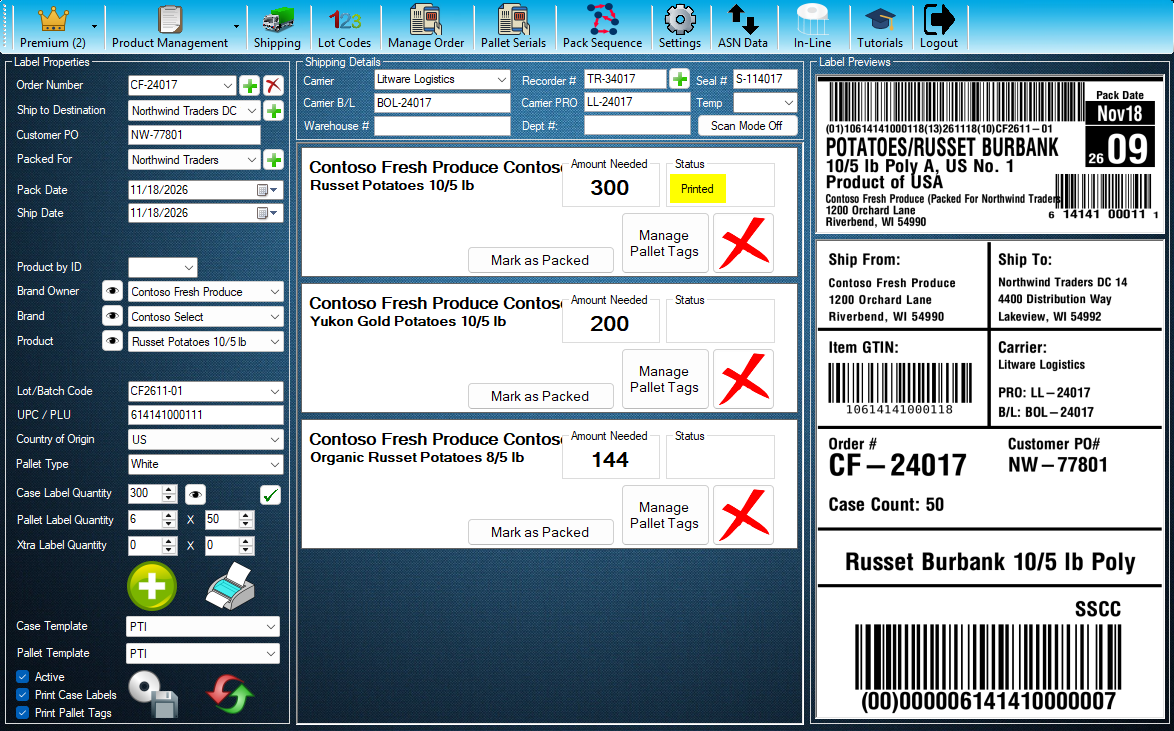
Step 1 / 27
Packaging Inventory
Packaging Inventory is a myPTI Premium feature. It keeps your packaging stock by lot, and packed orders take the packaging they use. Open Premium to go on.
Click the highlighted control, or press Next.
Step 1 of 27: Packaging Inventory
All 27 Steps
Every Step, as Text
The same steps as the interactive tutorial above. Select a step to open it there.
- 01Packaging InventoryPackaging Inventory is a myPTI Premium feature. It keeps your packaging stock by lot, and packed orders take the packaging they use. Open Premium to go on.
- 02Open Packaging InventoryPress Packaging Inventory. Without Premium you can still look around: Packaging Inventory opens just for this tutorial and closes when it ends.
- 03Your Packaging ItemsEvery bag, box, label and tray you pack with: its Amount in Inventory, Alert Amount, Status, Days of Cover and Next Expiry. Click a row to see the item on the left.
- 04Search and FiltersType in Search, or pick a Package Type, Item Status or Supplier, to narrow the list. Clear Filters shows every item again.
- 05StatusPress Low, Out, Below Zero, On Hold or Expiring to list only those items. All shows every item again.
- 06Locations and SettingsStart here. More opens Locations, the places you store packaging, and Settings, where an Administrator picks who may receive, adjust, count and approve.
- 07SuppliersOpens Packaging Suppliers: who you buy packaging from, their approval and review dates, and their documents, such as letters of guarantee.
- 08+ New ItemStarts a new packaging item in the details on the left. Fill in the boxes marked *, then press New Item at the bottom to save it.
- 09IdentityName and Package Type are needed. Item Code, Material, Artwork Version, Manufacturer and Description tell items apart. Status is Active, Use Up or Obsolete.
- 10Printed on the PackagingWhat is printed on it: Brand Name, Commodity, Variety, Grade, Commodity Size, UPC and Capacity. The suggestions come from your own and subscribed products.
- 11Supplier Pack SizesCounted In is the unit you count, such as Each. Supplier Pack, how many come in each pack and Packs per Pallet help with receiving and counts.
- 12StockAmount in Inventory is never typed: receiving, packing, Adjust Stock and counts change it. Alert Amount marks the item Low. Default Supplier and Location are here too.
- 13Food SafetyTick Food Contact, Consumer Container, Reusable or Lot Required. Rotation, FIFO or FEFO, picks which lot packing uses first. Shelf life and spec review follow.
- 14Save the ItemNew Item saves a new item, and Save Changes saves your changes. Cancel or Revert puts back what was saved; myPTI asks before you leave unsaved changes.
- 15The Item at a GlanceAmount in Inventory, Available, Days of Cover and Next Expiry for the item picked, with badges such as Low or On Hold.
- 16Adjust StockAdds or takes away stock with a reason, such as Opening Stock for what is on the shelf today, Damaged or Found. A mistake is fixed by a new adjustment.
- 17HistoryEvery movement of the item, with who, when and why. A mistake is fixed by a new movement, never by editing one.
- 18DocumentsKeeps the item's documents, such as its specification, with their expiry dates.
- 19Link ProductsOpens Link Products to Packaging: say which packaging each product uses. When a line is marked Packed, myPTI takes that packaging out of inventory.
- 20Linked ToThe products that use this item, and how many each uses per case or pallet. Edit Links changes them for this item.
- 21ReceiveOpens Receiving. Add Delivery Slips reads a supplier's PDF; + New Receipt lets you type one. Check what came in, then Post Receipt: each line becomes a lot.
- 22LotsThe item's lots in the order packing uses them, with the supplier lot, dates, location, amount and status.
- 23Use First, Hold and MorePick a lot, then Use This Lot First, Hold, Release, Reject or Move. Packing skips a lot on hold until someone who may approve releases it.
- 24CountsStart a full or cycle count, blind by default, then Save Counts and Post Count. An item below zero shows Count It, which counts just that item.
- 25ReportsOn Hand and Value, Usage, Days of Cover, Lot Trace, Hold Log and more, each exported to Excel. Export Audit Pack makes one workbook for your auditor.
- 26Reconcile NowMore also has Reconcile Now. It checks packed orders against the packaging they used and fixes any difference. It runs by itself each time this page opens.
- 27TotalsCounts your items and how many are low, out or on hold, and the lots and documents that expire soon. Close this window when you are done.
Ready to Print Your First Compliant Label?
Email us for a free trial account. We'll set you up, and the tutorials take it from there.