Find orders and print reports
Open Reports from Shipping, find orders by number, customer or date, choose what to show, then preview, print or open them in Excel.
- 2 steps
- Also built into myPTI
Step 1 / 2
Reports start in Shipping
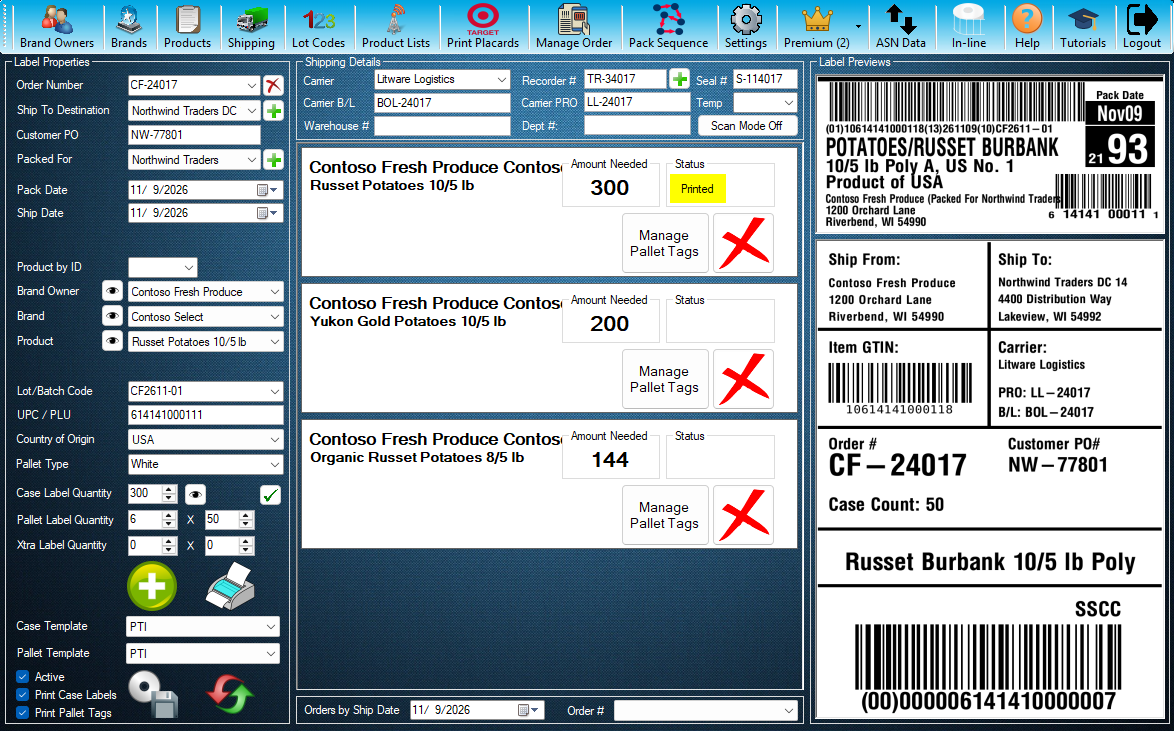
Reports open from the Shipping screen. Press Shipping to open it.
Click the highlighted control, or press Next.
Step 1 of 2: Reports start in Shipping
All 2 steps
Every step, as text
The same steps as the interactive tutorial above. Select a step to open it there.
New Reports page
Classic Reports page
- 01Reports start in ShippingReports open from the Shipping screen. Press Shipping to open it.
- 02View and Print ReportsThis button opens Reports. Press it to go on. This tutorial shows the classic Reports page.
- 03Order NumberFind one order by its number.
- 04CustomerOr find every order for one customer. Leave it on < Any > for every customer.
- 05DatesNarrow the search to a range of dates, or choose All Dates.
- 06Orders FoundThe orders that match are listed here. Pick the ones you want.
- 07Items to DisplayTick what the report shows, such as lot code, pack date, pallet number and weights.
- 08Print PreviewSee the report on screen before you print it.
- 09Print or open in ExcelPrint Selected prints the orders you picked, and Open Selected In Excel opens them as a spreadsheet. Close this window when you are done.
Keep going
Up next
Settings
Set up your company, printers and options
Company details, the eye buttons, your case label and pallet tag printers and your default lot code.
9 stepsStartSubscription
Check your Premium subscription
See your company's Premium status and price, subscribe, buy a License or manage billing.
8 stepsStart- Premium
Premium features
Keep a to-do list for your crew
Add, edit and delete shared tasks, and see who added each one and when.
8 stepsStart
Ready to print your first compliant label?
Email us for a free trial account. We'll set you up, and the tutorials take it from there.